
User Guide
This guide walks through the parts of Ferryx you use every day. The screenshots come from the live demo on the Ferryx home page, which mounts the real sidebar, tab bar, and split terminal view against a mocked backend. For the concepts behind each section, see the introduction; for every key binding, see keyboard shortcuts. Shortcuts below use macOS keys; on Windows and Linux, use Ctrl in place of ⌘.
First run
- Download the build for your platform from the
releases page and check it against the
published
SHA256SUMS.txt. Platform notes: macOS, Windows (the installer is not code-signed yet, so SmartScreen warns on first run), Linux. - Launch Ferryx and add a project folder with the + button at the top of the sidebar. The
project appears in the sidebar with its primary checkout listed as
main. - Press ⌘T to open a terminal tab. It starts your shell in the selected checkout.
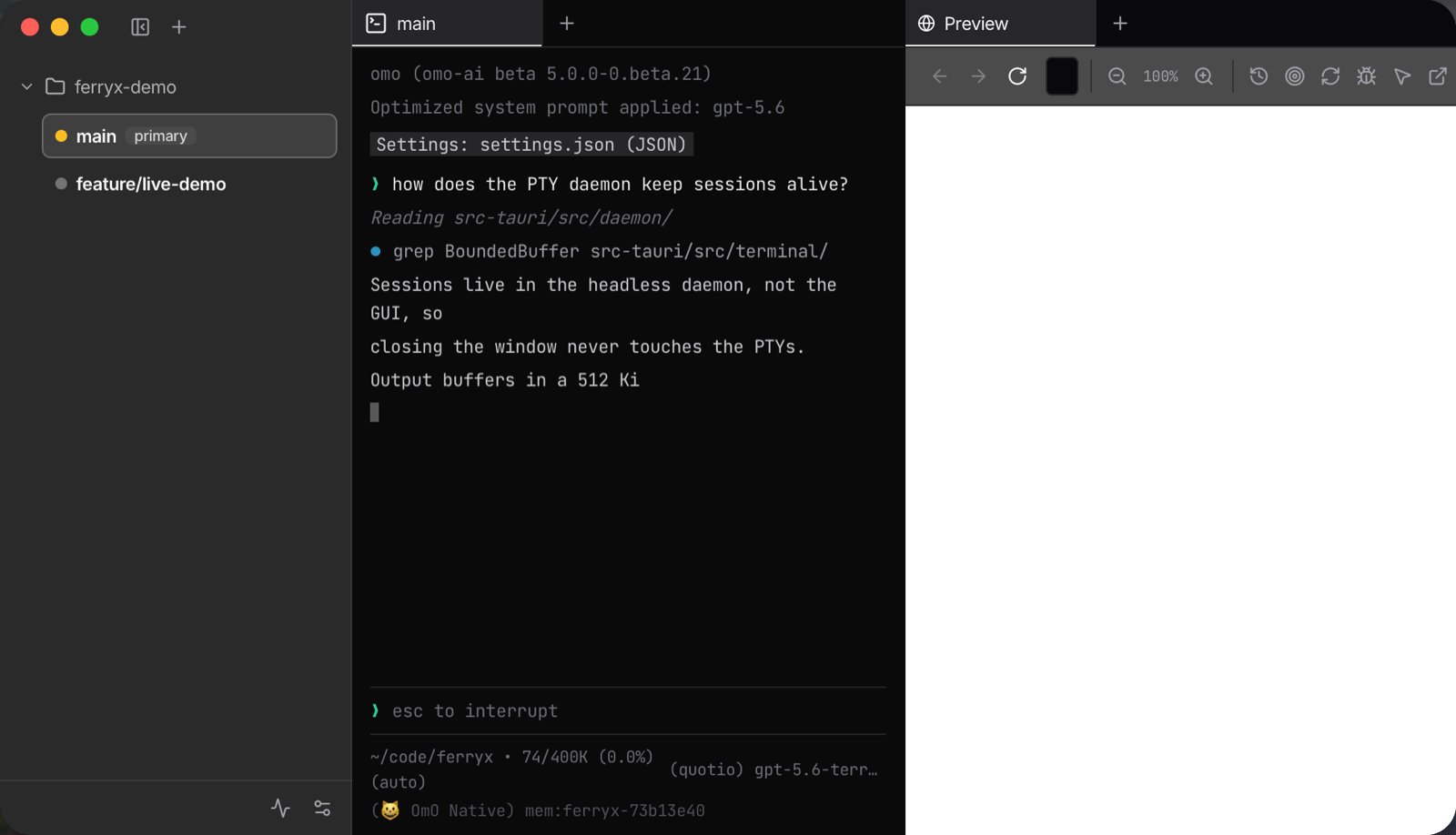
Terminal sessions belong to a headless background daemon, not the window. Closing or reloading the window does not stop them; the window reattaches and replays recent output when it comes back.
Workspaces and worktrees
A workspace groups the tabs, panes, and sessions of one project. ⌘1 through ⌘9 switch between workspaces and ⌘B shows or hides the sidebar.
Each line under a project is a checkout. The primary checkout is marked primary; every other
line is a Git worktree on its own branch, so an agent working there cannot touch the files of
another. Worktrees that Ferryx creates live under .orca-worktrees/<workspace-id>/<slug> on a
branch named orca/<workspace-id>/<slug>, and existing worktrees of the repository are
detected and listed too. Selecting a line opens (or focuses) a terminal in that checkout.
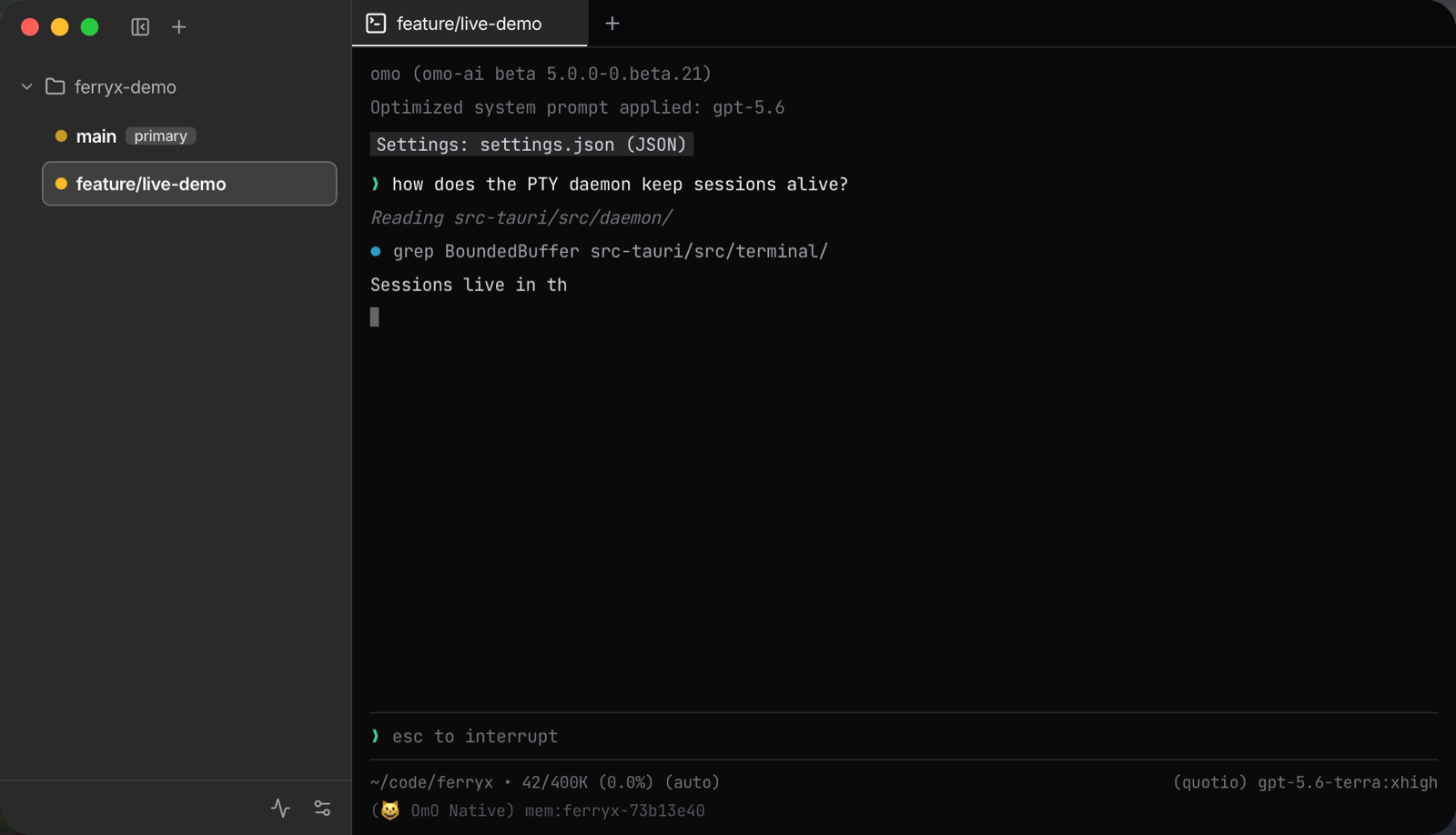
When a worktree’s work is merged, remove it from the sidebar so its directory and branch do not pile up; see cleaning up agent worktrees and the Git worktree workflow.
Panes and tabs
- ⌘T opens a terminal tab and ⌘⇧B opens a browser tab in the focused pane.
- ⌘D splits the focused pane to the right; ⌘⇧D splits it down.
- Drag a tab onto another pane, or onto the edge of a pane, to move it or to create a split.
- Drag the divider between panes to resize them.
- ⌘K opens the command palette when you would rather search for an action than remember a key.
The first screenshot above shows a terminal pane and a browser pane side by side; the browser tab uses the platform WebView, so documentation or a preview build can sit next to the session that produces it. The layout is saved automatically and restored on the next launch; if it ever restores wrong, see recovering a corrupted workspace layout.
Remote
Ferryx can reach terminals on other machines in two ways:
- A phone or another browser. Sign in to your Ferryx account on it with an email magic link. The mobile client renders the same sessions in a layout built for a narrow screen. Pair Ferryx with your phone covers the steps.
- Another computer running Ferryx or the headless
ferryx-clidaemon. Installferryx-cli, startferryx-cli --daemon, and link the machine to your account withferryx-cli account login --email <address>. Settings > Remote Access > Paired machines lists it afterwards. See headless Linux host setup.
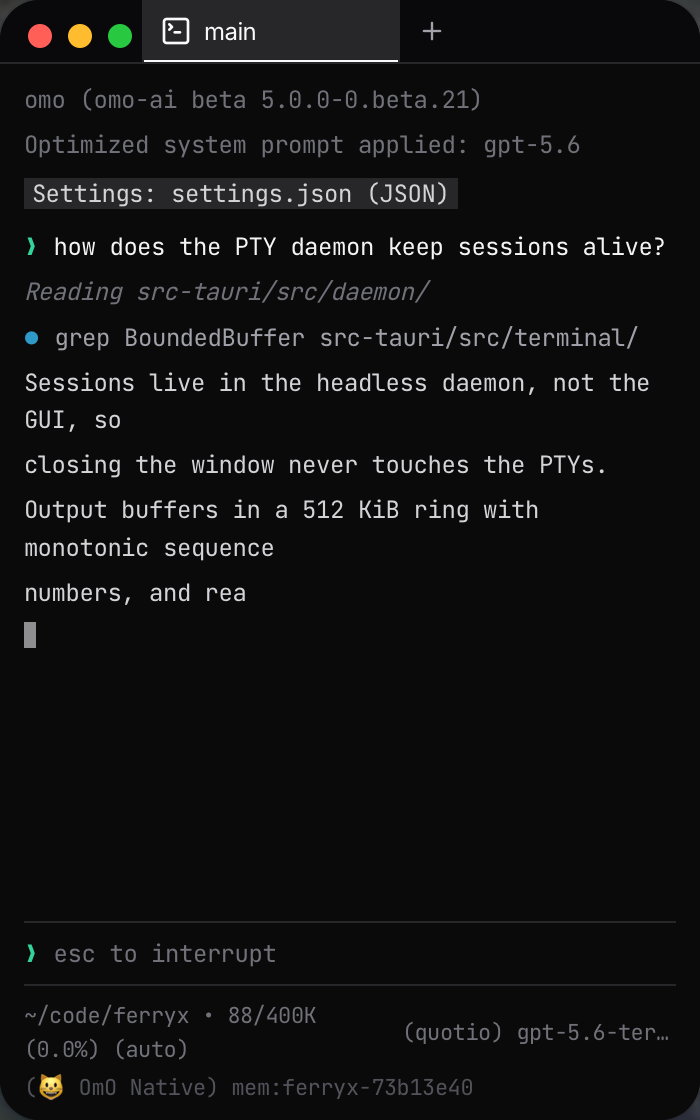
Paired sessions travel through an outbound relay, so neither side needs an open port. Between two Ferryx machines that can reach each other over UDP, a session moves onto a direct encrypted QUIC path and falls back to the relay if that path breaks. To operate the relay yourself, follow the self-hosted relay guide. Pairing a machine grants the paired side the ability to run programs as the daemon’s user, so only pair machines you control; the privacy declaration describes what crosses the relay. If pairing fails, use the pairing troubleshooting checklist.
Agents
Coding agents such as Claude Code, Codex, and Antigravity run in a terminal like any other command. The + button on a tab bar opens a new terminal tab in that pane, from which you start an agent; give each agent its own worktree so parallel runs do not collide.
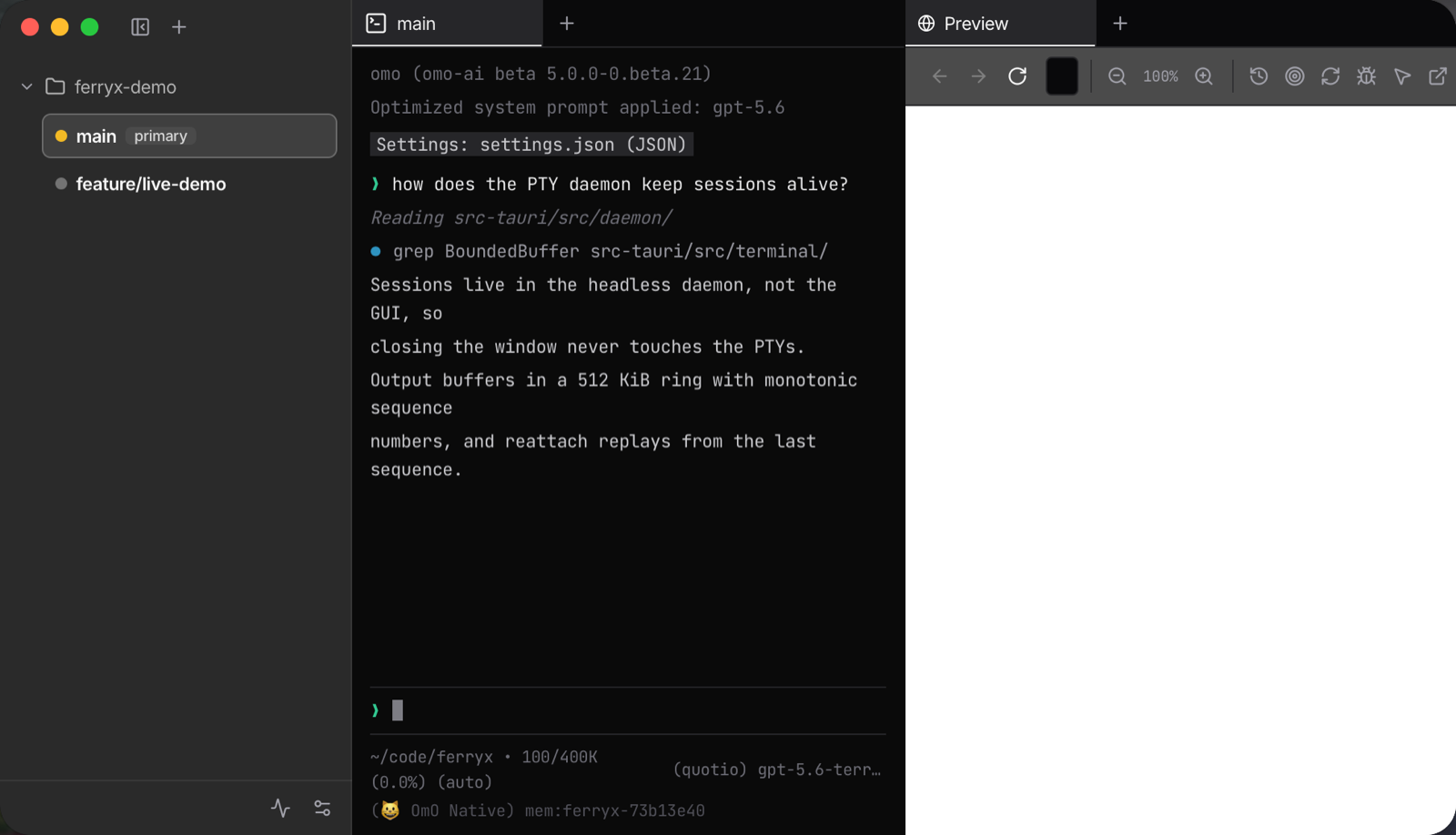
Ferryx ships status-detection manifests for common agents, so a tab can show whether its agent is working, waiting on you, or idle, and the attention counter (the Dock badge on macOS) tells you when one needs input. See the agent support matrix and running coding agents in parallel. If an agent seems frozen, start with when an agent looks stuck, and for anything else use the troubleshooting index.